
MT5 Trading Journal: Auto-Sync Without Installing an EA
Product research based on TDLab workflows, hands-on testing and cited source material.
An MT5 trading journal can stay current without manual entry or an Expert Advisor. TDLab uses MetaTrader 5's native FTP report publisher: the terminal publishes an account report to the private FTP destination generated for the account, and TDLab imports new closed trades from that report.
The connection is not a live order bridge. It does not place trades, modify positions or require algorithmic trading permissions. Its job is narrower: move completed trade data into a journal reliably enough that review can begin.
Short answer
Create an MT5 account in TDLab, enable FTP sync, copy the generated host, login, password and path into MT5's FTP settings, run the terminal test and enable automatic report publishing. TDLab checks for updated reports on a short interval and skips overlapping trades.Factual review
Product and platform details on this page were checked on August 4, 2026 against the current TDLab implementation and the official MetaTrader 5 help documentation.How TDLab's MT5 sync works
- TDLab creates a private FTP destination. The account panel generates a host, username, password and upload path.
- MT5 publishes the report. The desktop terminal sends its active account report using the FTP settings and refresh period configured in MetaTrader.
- TDLab scans for a newer supported report. The normal schedule is roughly every 15 minutes, and Sync now can run the check on demand.
- The import pipeline parses and deduplicates. New closed trades are added; overlaps are skipped instead of becoming duplicate journal rows.
- The journal becomes reviewable. Broker facts and fees arrive first, then the trader adds setup, plan adherence, execution quality, mistakes and notes.
The official MetaTrader 5 settings guide confirms that the desktop terminal can publish account-state and history reports over FTP, provides a Test action and lets the user choose a refresh interval. It also notes that publishing uses the currently active account. See the official MetaTrader 5 FTP settings.
Set up the MT5 trading journal connection
1. Create the correct TDLab account
The TDLab trading account must use MetaTrader 5 as its platform. Keep each broker login in its own account so timezones, cash flows and account rules do not become mixed.
2. Enable FTP sync in TDLab
Open Add trades, choose Auto-sync, enter the MT5 account number and select the report timezone. TDLab then displays the FTP host, port, username, password and path. The full product sequence is documented in Connecting MetaTrader for FTP auto-sync.
3. Configure MetaTrader 5
- In the MT5 desktop terminal, open Tools, Options and FTP.
- Enable automatic publishing of reports via FTP.
- Enter the server, path, login and password shown by TDLab.
- Select the same account number that is active in the terminal.
- Choose a refresh interval and use Test before saving.
- Keep the terminal open, connected and logged into that account.
4. Verify before trusting the analytics
Run Sync now and reconcile the first imported sample against MT5. Compare total closed trades, symbols, direction, size, close time, P&L and fees. A connector should earn trust with a small verified sample before months of history are used for decisions.
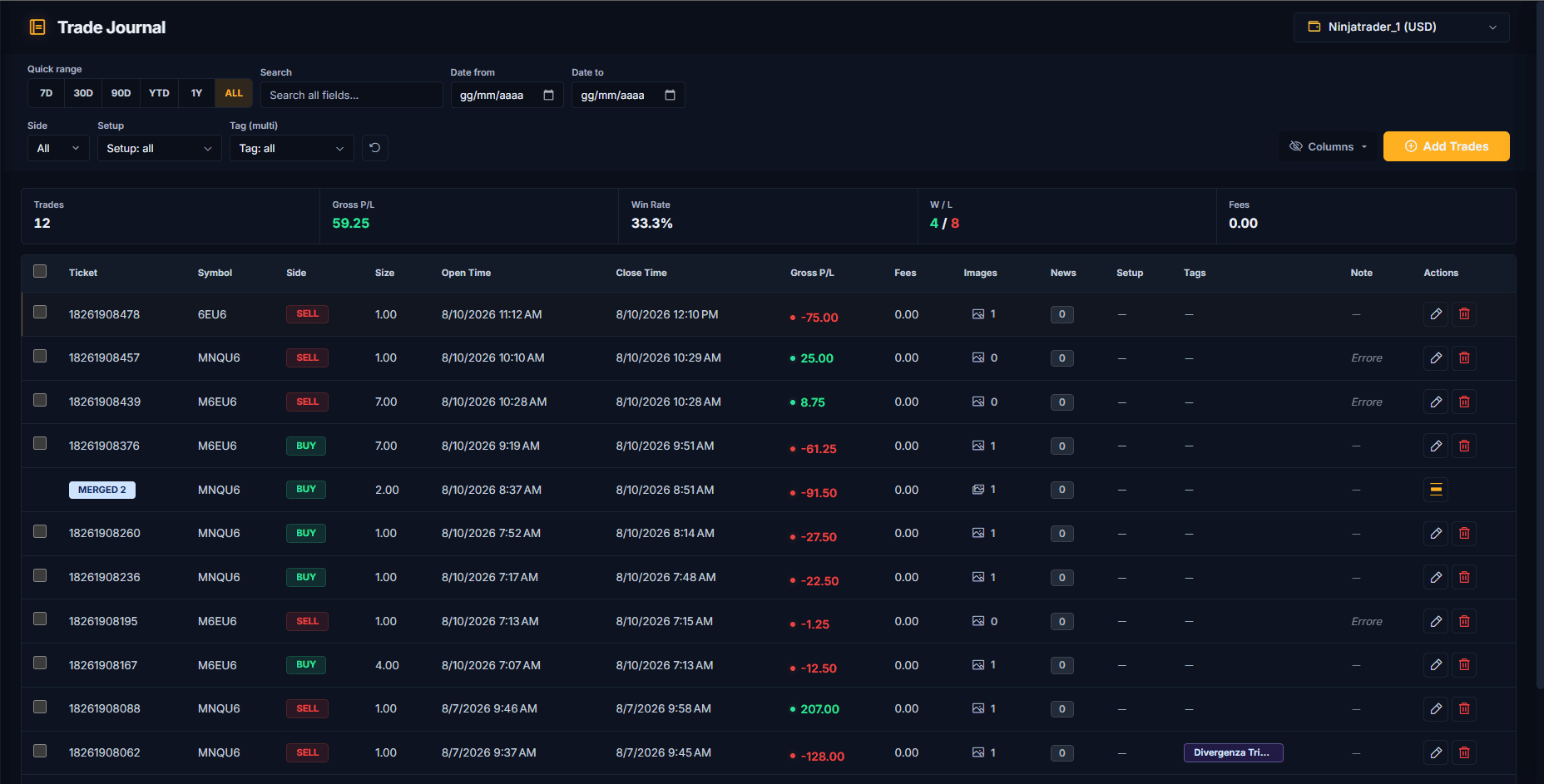
TDLab does not install an MT5 Expert Advisor
Many MT5 journals use an EA that watches terminal events and sends trades to a web endpoint. TDLab uses the FTP Publisher already present in the MT5 desktop terminal. That changes the setup and the trade-offs:
- there is no EX5 file to download or attach to a chart;
- Algo Trading and WebRequest permissions are not required;
- the terminal still has to remain open to publish reports;
- the journal updates on report cadence, not tick by tick;
- the flow is designed for closed-trade review, not live execution.
Neither transport is automatically better for every trader. The relevant question is whether the connection is complete, predictable and easy to verify under the restrictions of the broker, VPS or prop account being used.
What the report and journal should preserve
The report supplies the objective trading record. The journal should preserve at least:
- account and platform;
- ticket, symbol and side;
- position size and timestamps;
- closed-trade P&L and fees;
- a stable fingerprint for duplicate detection;
- the report timezone used during parsing.
These fields answer what happened. They do not answer whether the setup was valid or the plan was followed. Use the complete trading journal field template for the behavioral layer.
Common MT5 FTP sync errors
No report FTP found
Confirm that the MT5 FTP test succeeds, automatic publishing is enabled and the terminal remains open. Recheck every generated credential and path. The account selected in MT5's FTP settings must match the account currently active in the terminal.
No new report
This is not necessarily an error. It means the newest filename and write time match the report already processed. Wait for the next MT5 publish interval or create a fresh report update, then run Sync now.
Trades appear at the wrong time
Check the report timezone stored in TDLab. Do not fix an offset by editing individual trades before the source timezone is corrected; otherwise session and time-of-day analytics become inconsistent.
The report cannot be parsed
TDLab currently expects the MetaTrader report in English. The FTP importer accepts HTML, HTM, CSV and XLSX report files, but the underlying columns still need to match a supported MetaTrader format.
Trades are marked skipped
Skipped rows often represent an overlap with trades already stored. Compare imported and skipped counts with the source before assuming a failure. Re-running an overlapping report should not create copies.
Older trades are missing
Make sure the published report contains the intended history. If a historical backfill is easier as a file, use the file import and custom mapping guide first, then leave FTP sync responsible for newer reports.
What to do after MT5 trades arrive
Import completion is the beginning of a review, not the final result. Reconcile the source, complete the trade-review fields and close the session with the daily trading journal routine. At the end of the week, read expectancy, drawdown and fees beside review coverage and plan adherence using the performance metrics scorecard.
Common questions
Does TDLab need my MT5 broker password?
No. TDLab generates separate FTP credentials for report publishing. Those credentials are not the broker account password.
Does MT5 sync while the terminal is closed?
No. MetaTrader must remain open, connected and logged into the active account so it can publish reports on the configured interval.
Is MT5 FTP sync instant?
No. MT5 publishes on its configured refresh interval and TDLab checks for reports on a short schedule, normally around 15 minutes. Use Sync now when an immediate check is useful.
Can I use both file import and FTP sync?
Yes. A file can backfill history and FTP can handle later updates. TDLab fingerprints trades so overlapping records can be skipped rather than duplicated.
MetaTrader 5 and related marks belong to MetaQuotes. TDLab is an independent journal and is not presented as an official MetaQuotes product.
Connect behavior, context and performance.
TDLab connects your real trades with behavior, rules and historical market context, then helps you test what to change. Start free for 14 days.