
NinjaTrader Trading Journal: Web and Desktop CSV Import
Product research based on TDLab workflows, hands-on testing and cited source material.
NinjaTrader Web and NinjaTrader Desktop do not use the same import workflow. TDLab supports the Web Orders report CSVand the Desktop Trade Performance → Trades CSV as separate sources.
Web Orders contains fills, so TDLab rebuilds flat-to-flat positions and records gross P&L without commissions. Desktop Trades contains completed trade rows, net Profit and the fee breakdown, so TDLab can import fees and reconstruct gross P&L exactly.
Short answer
In Add trades choose the source that matches the file. For Web, use Orders and a flat-to-flat range. For Desktop, open Trade Performance, select Trades (called Mestieri in the Italian UI) and export the full grid as CSV. Do not substitute Desktop Orders or Executions.Factual review
Product behavior on this page was checked on September 21, 2026 against the current TDLab importer and NinjaTrader's official help guide.Not every NinjaTrader export is the same
NinjaTrader exposes several grids and performance views. The desktop Orders tab can export its visible grid, while Trade Performance can display executions, trades and orders. Those exports do not necessarily contain the same headers.
For NinjaTrader Web, TDLab expects the Orders schema:
- Order ID;
- B/S;
- Contract;
- avgPrice or Avg Fill Price;
- filledQty or Filled Qty;
- Fill Time;
- Status;
- Notional Value.
For NinjaTrader Desktop, choose Trade Performance → Trades and keep the complete grid. TDLab accepts English and Italian headers; English is recommended. Required data includes Trade number, Instrument, Market pos., Qty, Entry/Exit price, Entry/Exit time, Profit, Commission, Clearing fee, Exchange fee, IP fee and NFA fee. Italian equivalents such as Numero commerciale, Strumento, Mercato pos. and Profitto are recognized.
Account and Product are useful additional fields. If the required headers are absent, do not rename unrelated columns merely to make the upload pass. Export the correct report or use the custom completed-trade CSV workflow.
NinjaTrader's official documentation confirms that the Orders grid can be exported to CSV or Excel and that the Trade Performance window includes distinct Executions, Trades and Orders views. See the official NinjaTrader Orders tab guide and Trade Performance display reference.
Do not apply an “always UTC” rule from historical market-data exports to these account reports. The historical-data import guide documents UTC for that separate file type. For Desktop Trades, select the timezone configured under Tools → Options → General → Time zone. For Web Orders, select Central Time or the computer's local timezone according to the report setting.
Import from NinjaTrader Web
- Create or select the destination TDLab account and set its platform to NinjaTrader.
- In NinjaTrader Web, generate the Orders report for one source account.
- Choose a range that begins before the first opening fill and ends after every position in that export is flat.
- Download the report as CSV.
- Open Add trades, choose File / Report and select NinjaTrader — Web.
- Select the timestamp source used by the Orders report: choose America/Chicago when the report uses Central Time, or the matching IANA timezone when it uses the generating computer's local time. Then upload the CSV.
- Reconcile imported and skipped counts against the source report.
Import from NinjaTrader Desktop
- Open Control Center → New → Trade Performance.
- Filter to one source account, set the date range and generate the report.
- Select Trades. In the Italian interface this may appear as Mestieri.
- Choose the currency display (for example Trades ($)), keep the full fee columns visible, right-click the grid and export it as CSV. English headers are recommended, but Italian is supported.
- In TDLab select NinjaTrader — Desktop and choose the same timezone configured under Tools → Options → General → Time zone.
- Upload the CSV and reconcile net Profit and total fees.
Why Trades, not Orders or Executions?
Desktop Orders includes order-lifecycle rows and is not a completed trade ledger. Executions is useful for fill-level audits but requires pairing fills. Trades already contains completed entry/exit pairs, net Profit and every commission component, making it the safest standard Desktop import.Use one source account per file
The Orders CSV may contain an Account column, which TDLab uses while reconstructing positions. Every resulting trade is still imported into the TDLab account selected during upload. Filter the report to one source account so evaluation, funded, live and simulation history cannot be assigned to the wrong journal.Why the Web range must start and end flat
An order row is not necessarily a completed trade. One position can contain several entries, partial exits and a final closing order. The importer needs the entire sequence to infer the position state.
TDLab processes filled orders chronologically for each account and contract. It starts a cycle when quantity moves away from zero, adds same-direction fills at a weighted entry price and realizes P&L as opposite fills reduce the position. A journal trade is created only when the quantity returns to zero.
If the file starts halfway through an existing position, its first visible sell can be mistaken for a new short. If the file ends with an open position, that unfinished cycle is intentionally not emitted. NinjaTrader itself uses the last flat point when building performance reports so a selected date range does not begin in the middle of a position, as described in the official Trade Performance guide.
How scale-ins, scale-outs and reversals are represented
- Additional entries in the same direction update the weighted average entry price.
- Partial exits accumulate realized P&L without closing the journal cycle.
- The final exit closes one round trip whose size is the total closed quantity.
- An order that crosses through flat closes the old cycle and starts a new cycle in the opposite direction with the remaining quantity.
- Re-imported round trips are checked against existing tickets and trade fingerprints before insertion.
This differs from NinjaTrader's own Trades display, where scaled positions may appear as separate trade objects. Neither grouping is universally correct; use the source fills when reconciling a complex position.
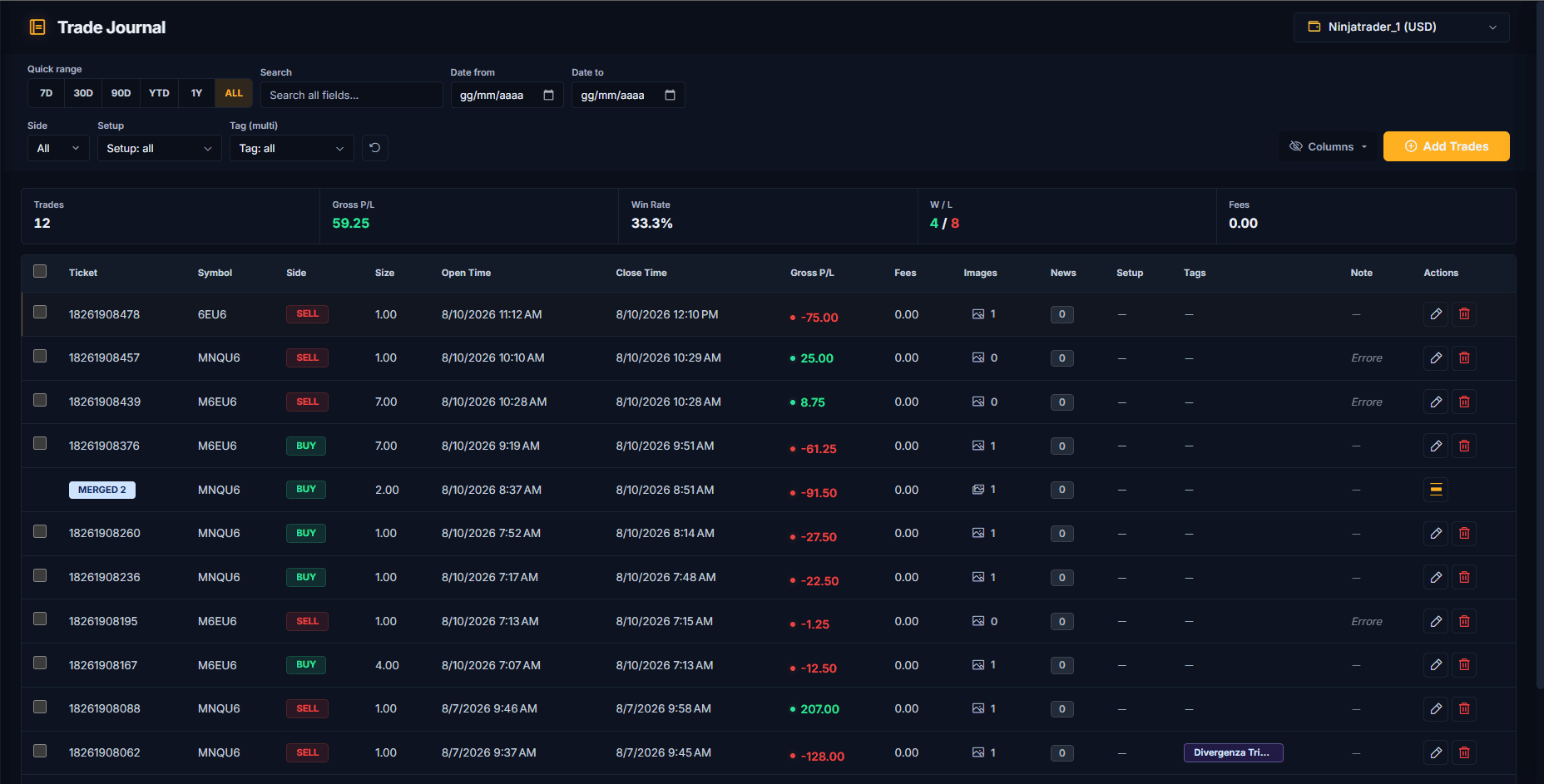
Web gross P&L versus Desktop net Profit
The targeted Orders report does not supply commissions. TDLab derives the contract point value from Notional Value, fill price and quantity, then calculates realized P&L from entry and exit prices. Fees are stored as zero and the record is marked as having no available fees.
Desktop Trades is different. NinjaTrader's Profit value is net of Commission, Clearing fee, Exchange fee, IP fee and NFA fee. TDLab stores their absolute sum in Fees and reconstructs gross P&L as net Profit plus Fees. Cum. net profit is cumulative context only and is never used as a per-trade result.
For Web, compare gross to gross. For Desktop, reconcile both net Profit and the summed fees before relying on the trading performance scorecard.
Common NinjaTrader import errors
The report is missing required columns
Check the selected source first. NinjaTrader — Web requires Orders; NinjaTrader — Desktop requires Trade Performance → Trades/Mestieri with the complete fee columns. Orders, Executions and Trades are not interchangeable schemas.
The import completes with no trades
For Web, confirm that Status contains Filled rows and the file includes a complete flat-to-flat cycle. For Desktop, confirm that the Trades grid contains completed rows for the selected period.
Trade direction or P&L looks wrong
Look for an opening fill just outside the exported range, a missing partial fill or mixed source accounts. Re-export a wider range and reconcile the order IDs used by the position.
Trades appear in the wrong session
Check the timezone selected when the Orders report was generated. Use America/Chicago for Central Time, or the matching IANA timezone for local time so daylight-saving changes are handled automatically. The selected TDLab account timezone separately controls how those instants appear in session and daily analytics.
Some rows are skipped
Non-Filled statuses, incomplete fills and duplicates are skipped. Read imported and skipped counts as a reconciliation signal, not as an automatic failure.
Turn the import into a review process
The CSV can reconstruct what happened, but it cannot know why the trade existed. Add setup, planned risk, plan adherence, execution quality and mistakes through the TDLab Trade Review queue. Futures evaluation accounts should also keep firm constraints separate from personal guardrails using the prop firm trading journal workflow.
Common questions
Does TDLab auto-sync NinjaTrader?
No. The supported workflows are Web Orders CSV and Desktop Trade Performance Trades CSV imports.
Can I import an open NinjaTrader position?
Not through this completed-trade workflow. TDLab emits a journal record only after the reconstructed position returns to flat.
Does the NinjaTrader import include commissions?
Desktop Trades includes and imports the fee breakdown. Web Orders does not include commissions, so that source records gross P&L and zero fees.
Can I re-import an overlapping range?
Yes. TDLab uses order tickets and fingerprints to skip round trips it already knows. Always verify the skipped count after import.
NinjaTrader and related marks belong to NinjaTrader. TDLab is an independent journal and is not presented as an official NinjaTrader product.
Connect behavior, context and performance.
TDLab connects your real trades with behavior, rules and historical market context, then helps you test what to change. Start free for 14 days.