
Tradovate Trading Journal: Import Orders CSV Without Broken P&L
Product research based on TDLab workflows, hands-on testing and cited source material.
To import Tradovate into a trading journal, download the Orders report as CSV, filter it to one account and choose a date range that includes every fill from flat to flat. In TDLab, select Tradovate — Web or Tradovate — Desktop according to the app used to generate it, choose the report timezone and verify the reconstructed round trips.
TDLab does not currently expose Tradovate API sync in the web app. The production-supported path is file import. That takes one extra step, but it also keeps the source evidence visible when partial fills or position reversals need investigation.
Short answer
Open Tradovate Reports, choose Orders, filter one account and a complete flat-to-flat period, then download the CSV. Import it into the matching TDLab account with Tradovate and the report's timestamp timezone selected. Reconcile gross P&L because commissions are not present in this report format.Factual review
Product and platform details on this page were checked on September 21, 2026 against the current TDLab importer and Tradovate's official support documentation.Export the Tradovate Orders report
Tradovate Web and Desktop use the same supported Orders report schema; they are separate choices in TDLab so the navigation and timezone guidance match the app in front of you. Neither choice uses NinjaTrader Desktop's Trade Performance Trades format.
- Open the account menu or reporting area in Tradovate.
- Select Reports and choose Orders.
- Filter the report to the exact source account.
- Set a timeframe that begins while the account is flat and ends after the last included position has returned to flat.
- Run the report and download it as CSV.
Tradovate's official support article confirms that its reporting area includes orders, position history, cash history and other report types, and that results can be downloaded as CSV. See How Can I Run a Report Within Tradovate's Platform?
The report timestamp representation is not fixed to UTC. Tradovate's official reporting documentation includes a timezone field and states that it adjusts times to the requested local numeric designation. The customer report flow offers Central Time or the generating computer's local time; because that choice is not embedded in the CSV headers, select the matching source timezone in TDLab.
Import the CSV into TDLab
- Create or select a TDLab account whose platform is Tradovate.
- Open Add trades and remain on File / Report.
- Select Tradovate — Web or Tradovate — Desktop.
- Choose America/Chicago if the report uses Central Time, or the IANA timezone of the computer that generated it if the report uses local time.
- Upload the downloaded CSV.
- Review processing status, imported trades and skipped rows in the import history.
The shared file-import limits, supported extensions and duplicate behavior are documented in Importing trades from a file. For this futures Orders parser, use the downloaded CSV rather than converting it to another format.
The required Tradovate columns
TDLab recognizes the Orders report through its headers and requires:
- Order ID;
- B/S;
- Contract;
- avgPrice or Avg Fill Price;
- filledQty or Filled Qty;
- Fill Time;
- Status;
- Notional Value.
Account and Product are accepted too. TDLab only turns rows whose status is Filled into position activity. Tradovate defines Filled as an order executed at the exchange in its official order-status reference. Working, cancelled, rejected and incomplete rows do not represent a completed fill and are skipped.
How TDLab turns fills into futures trades
The Orders CSV is an execution ledger. TDLab first sorts valid fills by Fill Time and Order ID, then maintains a running position for each source account and contract.
- A first buy or sell starts a position cycle.
- Same-direction fills increase size and update the weighted entry price.
- Opposite fills reduce the position and accumulate realized gross P&L.
- Returning to zero completes one journal round trip.
- Quantity beyond zero begins a new reversed position at the same fill price and time.
The contract point value is derived from Notional Value, fill price and filled quantity. The closing order ID becomes the journal ticket, while all source order IDs remain in the raw import record for reconciliation.
Flat boundaries are part of the data
A report that starts after a position was opened cannot establish the correct initial state. A report that ends before a position closes leaves an unfinished cycle, which TDLab does not import. Widen the range until every included contract begins and ends flat.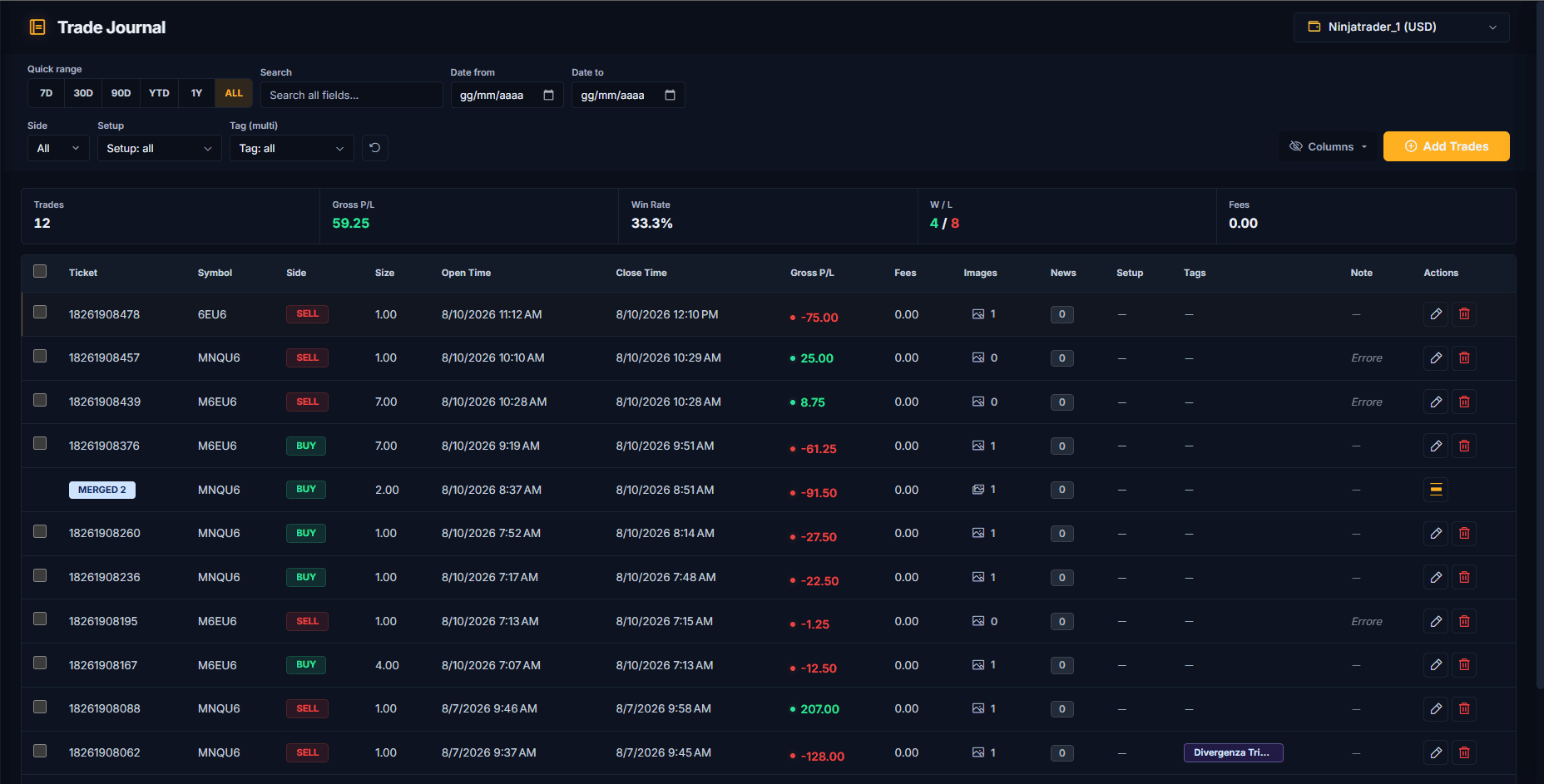
Gross P&L is not net P&L
The supported Orders report does not include commission data. TDLab therefore stores fees as zero and calculates gross realized P&L from prices, quantity and point value.
Reconcile that result with the gross column or the underlying fills, not with an account balance already reduced by commissions and other fees. Treat any cost-sensitive expectancy as incomplete until fees are represented. This distinction matters most for high-frequency and micro-contract workflows where per-trade costs can materially change the result.
Common Tradovate import problems
Missing Orders-report columns
Confirm that the selected report is Orders and that the downloaded CSV still has the original headers. Position History and account statement reports answer different questions and are not interchangeable.
No completed trades are imported
Check for Filled rows and at least one complete round trip. A range containing only entries, working orders or still-open positions cannot produce a completed journal trade.
P&L is unexpectedly positive or negative
Inspect the first and last fills for that contract. A position opened before the file, a missing partial fill or an account mixed into the export can change the reconstructed direction and average price.
Daily totals land on the wrong date
Match the source to the report setting: America/Chicago for Central Time, or the generating computer's IANA timezone for local time. Then confirm the timezone of the destination TDLab account. Source conversion and journal display timezone are separate concerns.
Repeated imports show skipped rows
That is expected for overlapping history. TDLab checks closing order tickets and fingerprints so an already stored round trip does not become a second trade.
Review Tradovate behavior, not only the equity curve
A correct import supplies contract, direction, size, times and gross result. It does not reveal whether the setup was valid, whether risk was planned or whether a second loss changed the next decision.
Complete the behavioral fields with the daily trading journal routine, then measure reviewed trades with the trading plan adherence method. If the account belongs to an evaluation or funded program, keep the current firm rules beside the prop firm journal checklist.
Common questions
Does TDLab auto-sync Tradovate?
Not in the current web product. Tradovate is supported through the Orders CSV import workflow described here.
Why does TDLab need the Orders report?
Its fill-level fields let TDLab reconstruct weighted entries, partial exits and reversals instead of assuming every row is a complete trade.
Can one CSV contain several Tradovate accounts?
The parser can separate position state by account, but all resulting trades are assigned to the TDLab account selected for the upload. Export one source account at a time.
Are commissions imported?
No. This Orders report workflow produces gross P&L and zero fees. Keep that limitation visible during reconciliation and analysis.
Tradovate and related marks belong to NinjaTrader. TDLab is an independent journal and is not presented as an official Tradovate product.
Connect behavior, context and performance.
TDLab connects your real trades with behavior, rules and historical market context, then helps you test what to change. Start free for 14 days.